From Graph to Intelligence: The My Curator MCP and the Art of Querying Your Second Brain
How My Curator MCP Turns Your Second Brain into a Frontier AI Research Partner

Where We Left Off
If you have followed this series from the beginning, you already know the origin story.
In the first article, I introduced the idea of the second brain — a concept that goes back to a small thought experiment by Andrej Karpathy, one of the most respected minds in artificial intelligence. His insight was simple and quietly radical: instead of using AI to search through your documents every time you ask a question, what if you used AI to continuously build and maintain a structured wiki? A living, compounding collection of plain text files that integrates every new source you add, updates everything related, and grows smarter with every ingest. Not a folder of notes. A graph of knowledge.
In the second article, I extended this idea into the concept of knowledge immortality — the possibility that the hard-won expertise a person accumulates over a lifetime need not vanish when they are no longer around. I walked through the architecture of The Curator, the open-source application I have been building to make Karpathy’s vision accessible without any technical background. I also introduced the first hints of something new: a component called My Curator MCP, which opens a private channel between your locally stored second brain and the frontier AI models you already use every day.
This third article is dedicated entirely to that component. What it is. Why it matters. What it can do. And why I believe it fundamentally changes what it means to have a second brain at all.
A Brief Recap: The Design That Makes Everything Possible
Before we go further, it is worth pausing to appreciate what makes the whole system work — because the elegance of the foundation explains why the MCP integration is possible at all.
Your second brain is not a database. It is not a subscription service. It is not locked inside any proprietary system. It is a folder of plain markdown files sitting on your computer — nothing more.
Markdown is the key. A markdown file is simply a text file written in a readable format that both humans and software understand well. No database engine, no migrations, no infrastructure to maintain. The files open in any text editor. They back up like any other file. They survive indefinitely — unlike binary formats tied to specific software versions, a markdown file written today will be perfectly readable in thirty years.
Each file follows a precise structure. Within any knowledge domain — say, AI research, or business strategy, or personal notes — every source you ingest is atomised into three types of pages:
Entities are the nouns. Specific named things: people, companies, tools, datasets, organisations. Each one gets its own dedicated page. entities/andrej-karpathy.md. entities/anthropic.md. entities/obsidian.md.
Concepts are the ideas. Theories, frameworks, techniques, principles — things that do not belong to a single owner. concepts/rag.md. concepts/context-engineering.md. concepts/knowledge-compounding.md.
Summaries are the narrative glue. One page per ingested source, connecting the specific entities to the broader concepts that source touches. The thread that holds the fabric together.
Every page contains YAML frontmatter with structured metadata: type, tags, creation date. Every page links to related pages using [[wikilinks]] — the same syntax Obsidian uses for its graph view. This means the same folder that serves as your wiki is also, simultaneously, a fully functional Obsidian vault. Open it in Obsidian’s graph view and you will see your knowledge rendered as an interactive, colour-coded network: blue nodes for entities, green for concepts, purple for summaries, with edges representing every connection between them.
This interoperability is not incidental — it is a core design principle. Your second brain is simultaneously manageable via Obsidian (with its visual graph and note editor), via any standard markdown editor, via The Curator application (which handles ingestion, chat, and maintenance through a clean browser-based UI), and now, via the My Curator MCP, directly from your AI chat client. All four read and write the same files. There is no synchronisation needed between them. Change a file in one place; every other tool sees it immediately.
The beauty of the design is that it has no moving parts beneath it. No infrastructure to maintain. No vendor to depend on. Just files on a disk — and the intelligence layered on top.
The Loop Most Second Brain Users Are Stuck In
Let me describe something I see consistently in second brain practice, including in my own early usage.
You ingest sources diligently. The Curator does its work. The graph in Obsidian grows richer — more nodes, denser connections, a visual representation of everything you have learned. You open the Chat tab in The Curator to ask questions. You get useful answers. Everything feels like it is working.
But there is a ceiling.
The graph is something you look at. The synapses — the actual connections between thousands of knowledge nodes you have accumulated over months or years — are largely invisible to you while you are inside the graph. You can see that your entities connect to your concepts. You cannot easily ask: What are the most important ideas in my AI domain that I have never explicitly connected to my business strategy thinking? You cannot say: For the white paper I am writing, pull every entity tagged crisis-response across all my domains and build me a citation skeleton. You cannot prompt: Across all the sources I have ingested in the past year, identify the recurring intellectual tensions I have not yet named.
That level of inquiry requires a frontier model — Opus, Sonnet, the best available reasoning engines — working against your graph as structured data, not as a pile of files to search through. It requires graph traversal: not just finding the pages that match a keyword, but following links from node to node, tracing backlinks to understand what connects to what, surfacing the topology of your own thinking.
That is precisely what My Curator MCP was built to provide.
What Is My Curator MCP — And Why Is It a Standalone Component?
Let me be precise about terminology, because it matters.
The Curator is the application. It runs locally on your computer, opens in your browser at localhost:3333, and handles the full lifecycle of your second brain: ingesting documents, managing domains, browsing and editing the wiki, running health checks, syncing to GitHub, and configuring connected tools. The Curator is where your second brain is created and maintained.
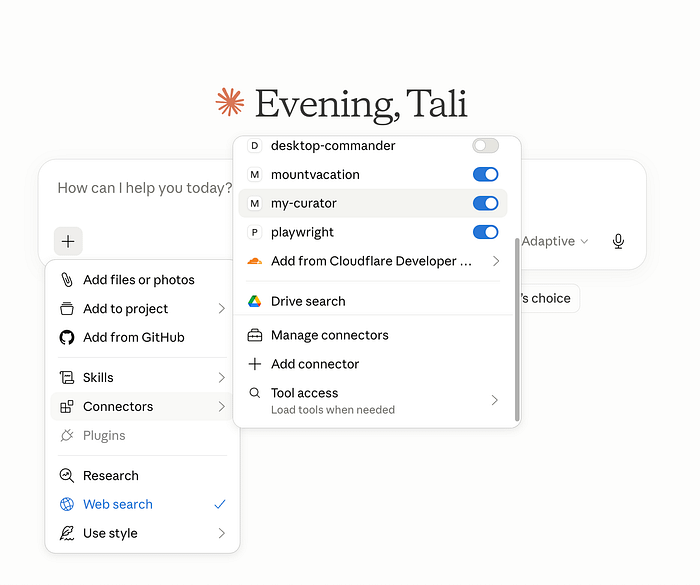
My Curator is the MCP — the Model Context Protocol server that ships with The Curator starting from version 2.3.0. It is a separate, lightweight process that exposes your wiki to any MCP-compatible AI client installed on the same machine. Claude Desktop is the primary use case; any other MCP-compatible client works equally well.
The crucial architectural point: My Curator MCP is a fully standalone component. The Curator application does not need to be running for the MCP to work. When your AI client launches, it spawns the My Curator server as a child process on demand — a separate, independent path into the same markdown files. This means you can close The Curator app, open Claude Desktop, and immediately start querying or building your second brain. Nothing extra to start. Nothing extra to maintain.
The only time you need The Curator app is when you want to update the MCP configuration itself — which happens automatically through The Curator’s Settings tab and takes under two minutes. After that, My Curator is fully self-contained.
A Private Bridge — With Options for Every Privacy Preference
Privacy is a first-class design consideration here, and the system gives you meaningful choice.
For most users who have a Claude subscription, the workflow is: install The Curator, install My Curator MCP inside Claude Desktop, and use frontier models like Sonnet or Opus to research and grow your second brain. Your wiki files never leave your machine — the MCP reads them locally and passes structured data to Claude in the conversation. The only communication that travels to Anthropic’s servers is the usual content of your Claude Desktop conversations: your prompts and the model’s responses.
For users who require complete data sovereignty — those working with genuinely sensitive research, or those who simply prefer that nothing leaves their machine under any circumstances — there is a fully offline alternative. Tools like LM Studio allow you to run capable open-weight models locally. My Curator MCP installs into LM Studio’s MCP configuration just as it does into Claude Desktop. The result is a completely air-gapped second brain workflow: your wiki lives on your machine, the model runs on your machine, and no byte of your knowledge ever touches an external server.
The architecture supports both ends of this spectrum without any trade-offs in capability. The same seventeen tools are available regardless of which model or which client you connect. The choice of privacy posture is entirely yours.
Skills: The Instruction Manual That Makes the MCP Brilliant
Here is something that is not obvious when you first connect My Curator MCP to Claude Desktop.
The MCP exposes seventeen tools to the model. Used naively — without any special guidance — the model works. It can call the tools, retrieve data, write pages. But ‘working’ and ‘working well’ are different things. Without guidance, the model might compose a wiki page with wikilinks that point to slugs that do not exist in your wiki, creating broken links you will have to clean up. It might search one domain when a cross-domain search would surface better results. It might try to save a research session without first checking what pages already exist, creating duplicates.
This is the problem that My Curator MCP skills solve.
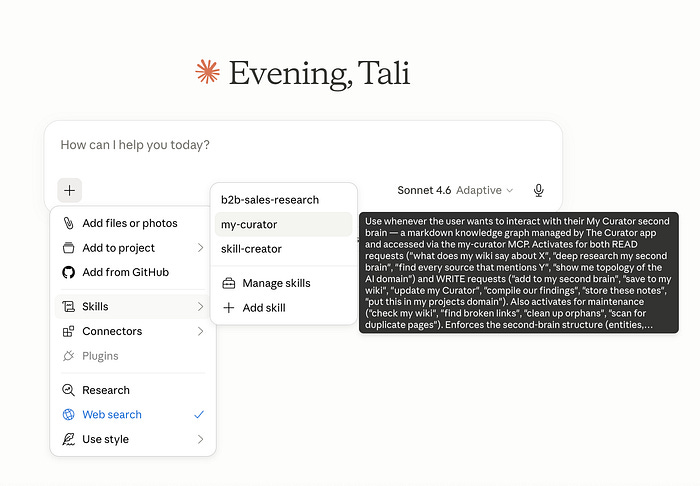
A skill, in the context of Claude Desktop, is a plain markdown file that you install once as a Project Document. It functions as a standing set of instructions that apply automatically to every conversation within that project. You do not re-type the rules. You do not remind the model of the playbook. The skill handles it.
My Curator ships with a dedicated skill file — claude-skills/my-curator/SKILL.md — that encodes a complete operational playbook. When this skill is installed, every Claude conversation that touches the My Curator MCP automatically follows the rules, every time, without exception.
The skill covers three distinct workflows:
Reading. Before answering a research question, the model orients itself on the wiki topology using get_graph_overview, identifies relevant hubs, and follows links systematically rather than issuing keyword searches and stopping. It uses the correct tool for each query pattern: topology orientation, targeted retrieval, bidirectional tracing, multi-hop traversal, tag-driven cluster analysis.
Writing. Before composing any wiki page, the model calls get_index to retrieve the complete page catalog of the target domain. It grounds every single [[wikilink]] it writes against that catalog — either confirming that the target page already exists, or declaring it as a new page to be created in the same operation. Speculative links — links to pages that do not exist and are not being created — are refused. The result is zero broken links on every write.
Maintenance. When you ask the model to clean up your wiki, it follows a three-tier protocol: auto-fix issues that have one clear right answer; pause and ask for your decision on issues that require judgement; and always preview destructive operations before executing them.
The skill is the difference between ‘I connected a powerful tool’ and ‘I have a rigorous system that handles my knowledge with precision.’ Installing it takes thirty seconds and changes every subsequent interaction.
The Seventeen Tools: What My Curator MCP Can Do
My Curator exposes seventeen tools to your AI client, organised into three tiers. Understanding what each one does helps you ask better questions and get better results.
Read Tools — Exploring Your Knowledge Graph
list_domains — Returns all available knowledge domains in your second brain. The natural first call in any research session when the domain is not yet specified.
get_index — Retrieves the master page catalog for a given domain — a full inventory of every entity, concept, and summary page, with their slugs. Essential for any writing workflow; also useful for understanding the precise scope of a domain.
get_graph_overview — Returns a compact topology snapshot: total node and edge counts, type breakdown, the top twenty hub pages ranked by connection count, a sample of orphaned nodes, and the top ten tags. This is the model’s map of your knowledge terrain — the right starting point for any deep research session.
get_tags — Retrieves the tag inventory for a domain, sorted by frequency. Use it when you want to explore your knowledge through a particular lens — everything tagged ai-safety, or competitive-analysis, or reading-list.
search_wiki — Performs a ranked keyword search within a single domain, enriched with tag and link counts for each result. Use it when you know what you are looking for within a specific domain.
search_cross_domain — Runs the same search simultaneously across every domain in your second brain. Use it when you want to surface connections that cut across your knowledge areas — a concept that appears in both your AI research and your business strategy domains.
get_node — Retrieves the full content of a specific page by its slug, including frontmatter, outgoing wikilinks, and backlinks. This is the tool that reads a page in depth; use it after search or overview calls have identified which pages matter.
get_connected_nodes — Performs multi-hop graph traversal from a starting page, returning its neighbourhood up to two hops away, ranked by distance and connection degree. Use it when you want to understand how a particular entity or concept sits within the broader graph.
get_backlinks — Returns every page in a domain that links to a given page — the ‘who mentions this?’ tool. Enormously useful for tracing the influence of an idea across your entire corpus.
get_summary — Retrieves a specific source summary page by its slug. Use it when asking about a specific document previously ingested.
Write Tool — Growing Your Second Brain from Chat
compile_to_wiki — The primary write operation. Takes the findings from a research session and saves them as permanent wiki pages: a summary page plus any new entity and concept pages that emerged. It runs the same merge pipeline as ingest: new pages are created, existing pages are updated, nothing is duplicated. A research session that ends with compile_to_wiki does not just stay in chat history. It becomes part of the graph.
Health Tools — Maintaining Your Second Brain
scan_wiki_health — Performs a full structural audit of a domain. Identifies broken links, orphaned pages, folder-prefix violations, cross-folder duplicates, hyphen variants, and missing backlinks. Returns a categorised list of issues with suggested fixes.
fix_wiki_issue — Applies a single repair from the health scan. The model calls this in a loop across a health session — auto-fixing safe issues, confirming ambiguous ones with the user, and always previewing destructive operations before executing them.
scan_semantic_duplicates — Runs an AI-powered analysis that identifies pages describing the same concept under different slugs (e.g. [[rag]] and [[retrieval-augmented-generation]]). Requires an LLM call with a small cost; the model estimates cost before running.
get_health_dismissed — Lists all health issues previously marked as intentional — issues reviewed and left alone. Useful for auditing past decisions.
dismiss_wiki_issue — Permanently silences a specific health issue so it stops appearing on future scans. Dismissals sync to other computers via GitHub sync and are shared between the MCP and the in-app Health tab.
undismiss_wiki_issue — Restores a previously dismissed issue, bringing it back to future health scans.
Maintaining Your Second Brain: The MCP Approach
A second brain is not a static archive. It is a living system — and living systems require maintenance.
As your wiki grows, small structural issues accumulate. An entity page ingested from one article may use a slightly different slug than the same entity that appears in a source ingested six months later. A summary page may reference a concept that was renamed. An article ingested at 50 pages may generate dozens of wikilinks pointing to concept pages that were planned but never created. None of these issues break the system. But they degrade it — the graph becomes patchier, the connections less reliable, the research results less trustworthy.
The Curator has a comprehensive Health section in its app UI, and I have invested significant time in it. You can run a health scan of any domain, review issues one by one, and apply AI-suggested fixes with a single click. The AI proposes; you confirm; the file is updated. For small wikis or occasional maintenance, this workflow is entirely adequate.
But it has a practical limitation at scale. A large document — a 50-page research report, say — can generate 50, 80, even 100 broken links when its summary references concept pages that do not yet exist. Processing these through the in-app Health UI, one confirmation at a time, is slow. Necessary, but slow.
My Curator MCP changes this calculus significantly.
When you ask Claude to clean up a domain, the model runs scan_wiki_health, receives a structured list of every issue, categorises them by type and urgency, and begins processing. Issues with a single clear right answer — broken links where the correct target is obvious, folder-prefix violations, missing backlinks — are fixed automatically in rapid succession without requiring your input. Issues that require judgement — orphan pages, broken links without an obvious target — are presented to you conversationally, one by one, for a simple fix / dismiss / leave decision.
The entire session runs within your AI client. You are having a conversation while your wiki is being repaired in parallel. A hundred broken links that would have taken hours of click-by-click confirmation in the app can be processed in twenty to thirty minutes through a focused Claude Desktop session. Token-intensive, yes — but on a subscription plan, this is not a constraint that changes the value of the outcome.
The dismissal system is particularly elegant here. When you tell Claude (i.e. or any other LLM that you are runing) to dismiss an issue — ‘leave that broken link alone, I will create that page later’ — the dismissal is written to the same file that the in-app Health tab reads. Sync to GitHub. Open The Curator app on a different machine. The dismissed issue is already gone from the Health tab, without any additional action. The two interfaces share a single source of truth.
Three Use Cases: What Deep Second Brain Research Actually Looks Like
Abstract descriptions of capability are less illuminating than concrete examples. Here are three use cases that demonstrate My Curator MCP at its most powerful.
Use Case 1: The Cross-Domain White Paper
You have spent two years building a substantial second brain across three domains: AI research, business strategy, and organisational leadership. You are now writing a white paper on the role of AI in organisational transformation. You need a strong conceptual foundation, grounded in your own accumulated reading — not in generic internet research.
You open your LLM client (e.g Claude Desktop App) and ask: ‘Search across all my domains for every concept and entity related to organisational transformation, AI adoption, and change management. Then identify which of these I have developed most deeply, based on how many sources reference them.’
LLM (e.g. Claude) calls search_cross_domain with multiple queries, retrieves ranked results from all three domains, then calls get_node on the highest-density pages. Within one conversation, you have a citation skeleton: a structured list of the concepts your white paper should foreground, ordered by the depth of your own prior research on each one, with specific source summaries to reference.
What would have taken days of manual review of your own notes happens in a single focused session.
Use Case 2: The Living Literature Review
You are a researcher who ingests academic papers as you encounter them — not in batches, but one or two per week over many months. After a year of consistent ingestion, you have over a hundred papers in your research domain. You need to write an introduction section that summarises the state of a specific sub-field.
You ask Claude: ‘In my research domain, trace every concept and entity connected to few-shot-prompting. Give me the topology of that sub-graph — which related concepts appear most frequently, which authors connect to it most densely, and what are the most recent summary pages that mention it.’
Claude calls get_graph_overview to orient itself, get_connected_nodes on few-shot-prompting for its neighbourhood, get_backlinks to find every source that cites it, then get_node on the top five densest connected pages for full content. It synthesises a literature overview that reflects your actual reading — the papers you have personally evaluated, not a generic internet summary.
You ask Claude to compile_to_wiki the synthesis as a new concept page. The page becomes part of your wiki, ready to be updated automatically the next time you ingest a paper that touches on it.
Use Case 3: The Strategic Intelligence Session
You are an executive who uses your second brain as an intelligence layer — competitor analyses, market reports, customer interview transcripts, strategic memos, all ingested over time. You are preparing for a quarterly board meeting and need a strategic synthesis that cuts across everything you have been tracking.
You open Claude Desktop and ask: ‘Across my business domain, give me the topology overview, then identify the five concepts that appear as hubs. For each hub, pull the most recent three summaries that reference it and give me a one-paragraph synthesis of what my own research says about it.’
Claude orchestrates get_graph_overview, get_node on the top five hubs, get_backlinks on each to identify the most relevant sources, then get_summary on recent source pages. The result is not generic AI-generated strategy advice. It is a synthesis of your own accumulated intelligence — your sources, your analysis, your framing — organised by a frontier model reasoning against your actual knowledge graph.
This is what ‘queryable extension of your own thinking’ means in practice.
Best Practices: Getting the Most from My Curator MCP
Install the My Curator skill before your first real session. The skill file is available at claude-skills/my-curator/SKILL.md in The Curator GitHub repository. Add it as a Project Document in Claude Desktop. After that, every conversation that touches your wiki follows the full operational playbook automatically. Do not skip this step — the skill is what transforms the MCP from a capable tool into a precise one.
Start every research session with get_graph_overview. Even if you think you know what you are looking for, let the model orient itself on the topology first. The hub pages — the entities and concepts most densely connected to everything else — are often not the ones you expected. Seeing the actual topology of your knowledge frequently surfaces angles you had not consciously considered.
Use search_cross_domain for synthesis questions. When your question cuts across your areas of knowledge, the cross-domain search is the right tool. It queries every domain simultaneously and returns ranked results from each, enabling the model to follow those results into get_node calls for depth.
Let compile_to_wiki close every meaningful session. If a research conversation produces genuine insights — connections you had not seen before, frameworks that emerged from the synthesis — compile them to your wiki before you close the conversation. Chat history is ephemeral. Wiki pages are permanent and compound with every future ingest.
Run health checks after every large ingest. The My Curator health session is most valuable immediately after ingesting a large document. Broken links are fresh, their intended targets are clear, and the repair is fast. Build the habit: ingest, then health-check via Claude Desktop as part of the same session.
For fully offline use, use LM Studio. If your second brain contains genuinely sensitive material, the offline path is fully functional. Install My Curator MCP into LM Studio’s configuration and choose a capable open-weight model — Qwen 3 14B performs well for this workload on a machine with 16 GB RAM. Every capability described in this article works identically in the offline configuration.
How to Install: From Zero to Working MCP
The installation follows a clear sequence. Two components; one wizard.
Step 1: Install The Curator. Go to github.com/talirezun/the-curator. On macOS, the installer is a single terminal command that auto-detects your Node.js version, installs dependencies, builds the Dock application, and opens The Curator in your browser automatically. On Windows and Linux, a manual setup path is documented and requires only a few terminal commands. The first-run onboarding wizard walks you through creating your first domain and configuring your AI model API key. The default model — Google Gemini 2.5 Flash — has a free tier sufficient for most users to begin without any cost.
Step 2: Ingest at least one source. Before configuring My Curator, give your wiki something to hold. Drop a PDF, a text file, or a markdown article into the Ingest tab. The Curator processes it, creates the first wave of entity, concept, and summary pages, and your knowledge graph begins to form. This step is not technically required for the MCP to work — but an empty wiki makes for an uninteresting first research session.
Step 3: Configure My Curator MCP. Open The Curator → Settings tab → My Curator — Private MCP Bridge section. Click Copy snippet. The configuration block is now in your clipboard. Click Reveal in Finder (or the equivalent on your OS) — this opens the folder containing the Claude Desktop configuration file claude_desktop_config.json. Open that file in any text editor and paste the snippet into the mcpServers key. The wizard shows you exactly what the before and after look like. Save the file, then fully quit and reopen Claude Desktop.
Step 4: Run the self-test. Back in The Curator Settings tab, click Run self-test. The system confirms that My Curator responds correctly and that it can find your domains folder. Green indicators mean you are ready.
Step 5: Install the My Curator skill. Download claude-skills/my-curator/SKILL.md from The Curator GitHub repository. In Claude Desktop, add the skill.md file within the designated add-skill section.
First prompt: ‘Use list_domains to show my available knowledge domains, then use get_graph_overview on the most interesting one to show me how everything is connected.’
That is the full installation. Total time under ten minutes, including reading the wizard instructions.
What This Makes Possible
Let me close with the idea that motivated building this.
The second brain concept, as Karpathy first articulated it, was about escaping the limitations of retrieval. Instead of re-deriving answers from raw documents every time you ask a question, you maintain a persistent, compounding structure that grows more valuable with every source you add. The knowledge is compiled once. The connections build over time. The longer you maintain it, the more it reflects the actual architecture of your thinking — not just what you have read, but how those things connect, contradict, and build on each other.
My Curator MCP takes this one step further. It is not enough to have built the graph. The graph needs to be traversable. The connections need to be queryable. The topology needs to be readable by the most capable reasoning systems available.
That is what the bridge provides. Your second brain — the one you have been building, source by source, over months or years — becomes a first-class research environment. Not a folder of files that a search bar can skim. A graph that a frontier model can reason against systematically, following connections, tracing influences, surfacing patterns you accumulated without consciously noticing them.
And crucially: everything stays on your machine. The MCP is not a cloud service. It is not a subscription. It is a private bridge, running locally, between the knowledge you have built and the intelligence that can help you see it clearly.
The second brain gets smarter with every source you add. Now, it also has a way to be properly read.
Getting Started
The Curator is open source and free to use. Find it at github.com/talirezun/the-curator.
The My Curator skill file is at claude-skills/my-curator/SKILL.md in the same repository.
If you are using Claude Desktop, Claude Sonnet is the recommended model for most research sessions — capable and efficient. For the most demanding synthesis tasks, involving large wikis and complex cross-domain queries, Claude Opus is worth the additional cost.
For fully offline use, LM Studio with a locally installed model is the right path — all seventeen tools work identically.
Start with what you have. Ingest a few sources. Open Claude Desktop. Ask the graph what it knows.
In a few months, you will be surprised by the depth of what you have built.
About the Author
Dr. Tali Režun is a Serial Entrepreneur, Business Developer, and Academic at the forefront of frontier technologies. As Vice Dean of Frontier Technologies at COTRUGLI Business School, he leads AI innovation initiatives and shapes MBA curricula for the next generation of technology leaders. With over 30 years of entrepreneurial experience — founding and scaling ventures including The Curator, Lumina AI, Moj AI, Block Labs, CR Systems, 4thTech, Immu3, PollinationX, and Online Guerrilla — he bridges cutting-edge research in AI and Web3 with practical business transformation.
Tali’s Links
— https://talirezun.com/
— https://x.com/talirezun
— https://www.linkedin.com/in/talirezun
— https://www.researchgate.net/profile/Tali-Rezun
Disclaimer
Research and Educational Purpose
This article is published for research and educational purposes only. The content represents our personal experiences, observations, and analysis based on extensive hands-on experimentation with AI agent technologies over the past eighteen months.
No Commercial Relationships
We have not been compensated, sponsored, or otherwise financially supported by any of the companies, platforms, or tools mentioned in this article. All opinions, assessments, and recommendations are my own and based solely on independent research and practical experience.
Individual Research Required
Readers are strongly encouraged to:
Conduct their own independent research before adopting any AI agent technology
Evaluate tools and platforms based on their specific use cases, requirements, and risk tolerance
Test systems thoroughly in controlled environments before production deployment
Consult with relevant technical, legal, and security professionals when implementing AI agents in business-critical or sensitive applications
Stay informed about evolving best practices, security considerations, and regulatory requirements
No Guarantees or Warranties
While I have made every effort to ensure accuracy based on my research and experience, I make no guarantees regarding the performance, reliability, security, or suitability of any AI agent technology for any particular purpose. Technology capabilities and limitations may vary significantly based on implementation details, use cases, and environmental factors.
Evolving Landscape
The AI agent ecosystem is developing rapidly. Tools, platforms, protocols, and best practices referenced in this article may be superseded, deprecated, or fundamentally changed by the time you read this. Always verify current capabilities and recommendations with primary sources and official documentation.
Your Responsibility
You are solely responsible for evaluating whether and how to implement AI technologies in your specific context. Consider your risk tolerance, regulatory requirements, security needs, and organizational capabilities before implementation.
Wow. This is really very good.
Thanks for having created The Curator and having made available to everyone!
.
I am trying to buy some extra time to test and explore it as much as possible.
A few small feedback points from a non-expert, non-technical user:
.
1. Make it easier for the non-tech users who normally don't use Github to download that Skill.md file. Put a link also to a Google Drive or Dropbox copy of it, so that one click and one has it, instead of having to find it.
.
2. After having installed Skill.md Claude tells me that the present MCP server only exposes to him 10 read services but none of the writing ones. It kind of suggests to get a more updated version.
.
3. A few short screencasts showing your screen and some of these basic operations - with your voice explaining -, would be really helpful to help this fantastic work you have done, from the research realm to the everyday non-tech professional curious enough to spend some time to try all this.